Using Keys to place or receive calls
Outgoing
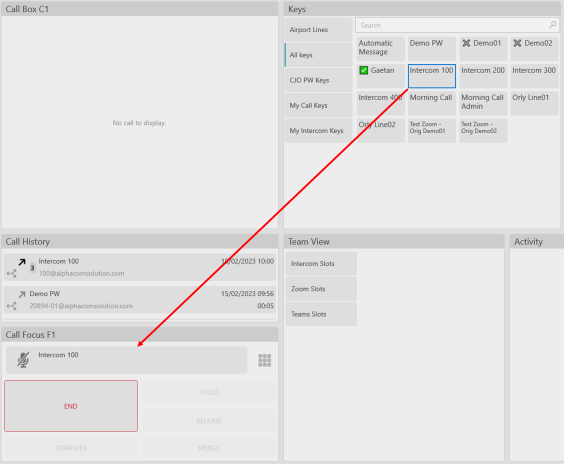
If the key only has 1 Target defined or is linked to a non-routed Slot (Intercom, Private Wire, Radio), clicking on the key will immediately place the call:
Tip
An Admin can change that behavior so that the Identity Applet will always open.
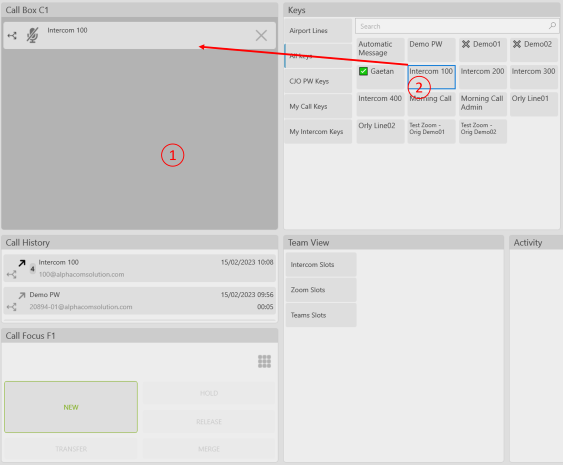
By default, the call will be sent to Call Focus F1, unless a specific Audio Source is defined for the key (can only be done by the Administrator from the CAS Console) or if the User select a specific Applet before clicking on the key:
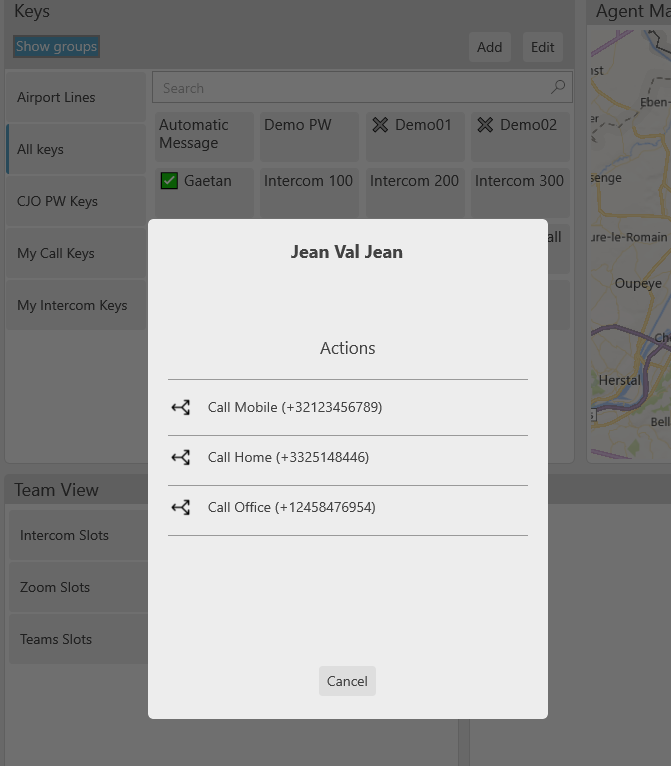
If the key holds Several Targets, a pop-up window will open (The Identity Applet) to allow the user to select from the available targets:
Incoming
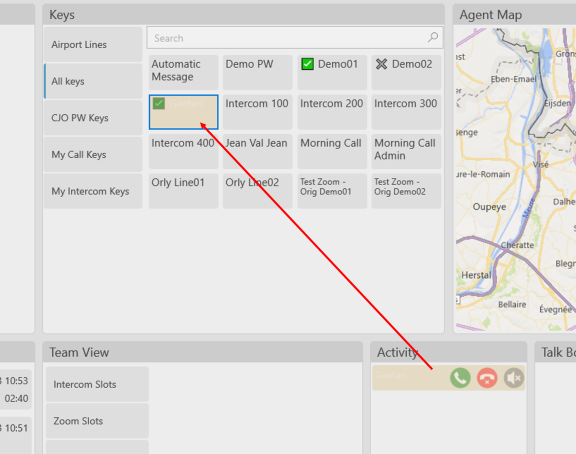
When an Incoming Call matches with a Key, the key will blink to notify the User. Clicking on a Blinking Key will answer the call:
Established
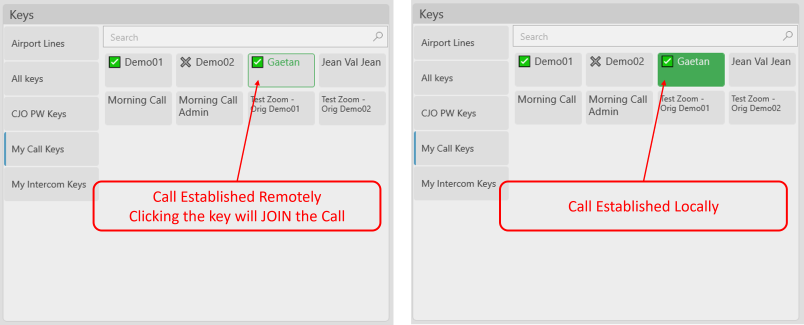
An Established Call matching with a key will be displayed differently depending if the call is established Localy or Remotely:
Tip
Clicking on the key of a Remotely Established Call will join that call.